90+% get it wrong
The pandemic ushered in a new age replacing in-person face-to-face interactions with Zoom, Microsoft Teams, Webex, and many other video virtual meeting options. As a result, we have all experienced video and sound technical difficulties. For some, it’s a daily occurrence.
Let me prove it to you. We have all been watching the evening news when the anchor person switches to a reporter in the field. The reporter’s picture is not in focus or obscured by fog or smoke. No problem, we can squint and still see at least the basic features of the reporter and know we are looking at a human being.
Ten seconds into the reporter’s story, the sound of their voice, for the next five (5) seconds, is replaced by the combined sound of crumpling paper, hissing snakes, and nails on a chalkboard. Think of the worst speaker at a fast food drive-thru. We involuntarily and physically disengaged from the story that was being broadcast. We not only stop listening the majority of the time, but we also don’t even try to reconnect to the reporter’s story.
Sound is More Important Than Video
The vast majority of people listen passively. A passive listener says, “I don’t want to work at listening. I want to be spoon-fed.” When the sound went terrible, the reporter stopped spoon-feeding the listener. The listener then said to themselves, “I don’t know where I am in this story; I am not going to work to try to reconnect and figure out what is missing; I’m gone.”
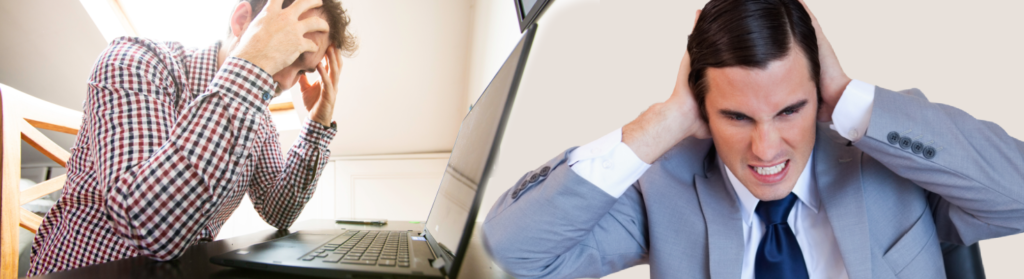
The same thing happens within Zoom calls. When the person who is speaking sound goes bad, listeners disengage. You can see it in their facial expressions, furrowed brows, and rolled eyes. The speaker loses Command Presence, credibility, and even empathy when this happens. Now the speaker has to work usually more than twice as hard to get back to ground zero. The speaker has lost momentum, timing, and the emotional favor of the audience.
If you are a neutral in arbitration, and one or both sides can’t hear you clearly, the resulting frustrations caused by horrible sound add unnecessary agitation and can sabotage what would have been a successful settlement. Even worse, you may not receive another referral simply because the quality of your laptop mic made it difficult for others to hear you clearly.
Suppose you are a sales professional (high-end real estate agent). You are being interviewed by a potential client, via Zoom, as an agent for an executive home purchase for a Fortune 100 company. Your voice is slight (because you’re using a laptop microphone) and is not at the TV -Anchor quality. In that case, they may dismiss you as not professional enough for their standards.
Suppose you are an attorney taking the deposition of a critical opposing witness and halfway through a “gotcha” impeachment question, the court reporter interrupts you and asking you to repeat the same question repeatedly because your webcam microphone has a loud background hiss. As a result, you will have lost the impact of your “gotcha” moment and diminished both your command presence and credibility.
Bad sound is the KISS OF DEATH from which there is no Resurrection.
Here are a few expert tips to help you navigate sound issues with Zoom and avoid terrible sound pitfalls.
- Use a lavalier microphone. These are the microphones you usually see worn by TV news anchors because they can be discreetly attached to the top of the collar, suit jacket, or blouse without drawing much attention. The thin wire connects to your computer’s microphone port (usually 3.5mm) and runs to the point closest to your mouth to capture your voice’s full tone and resonance while canceling out extraneous sound. Wired mics are preferred due to the “idiot” proofing” physics of the mic being tied to the computer, which makes it hard to share too much information on a bathroom break.
- Find a stable internet connection. This sounds obvious, yet even a perfectly calibrated microphone becomes useless if the signal taking the audio to the meeting is unstable.
- Leverage the virtual meeting software’s audio “auto adjust.” Most virtual meeting software has audio settings that enable you to select an “auto adjust” setting to calibrate the appropriate volume of your microphone. This is available even when the microphone being used is the device (laptop, phone, or tablet) microphone. For example, the meeting software will adjust if you have a naturally lower voice, making it fuller to the listener. If your voice carries across the office, it will decrease the volume to a normally acceptable level.
If you are overwhelmed by technology or looking for a straightforward solution, the Gerrel 1 Button Office Video Conference Studio is for you. This purpose-built system offers a TV-Anchor person lavalier lapel microphone, professional DSLR quality camera, lighting tuned to your unique skin tone, and a physical background.
The entire system is controlled with 1 Button.